5 Best Laptop Docking Stations for Students in 2026
Five picks for everyday student desks, multi-monitor setups, and high-bandwidth Thunderbolt workflows.
Research checked
A laptop is great for saving space—until your desk starts filling up with monitors, chargers, storage drives, Ethernet adapters, and USB accessories.
A good docking station can turn one laptop connection into a much cleaner desktop setup. For students, that can mean plugging in a monitor, keyboard, mouse, Ethernet, external storage, and power without reconnecting everything one device at a time.
The difficult part is that docking stations are not interchangeable. A dock with a long list of ports may still be a poor fit if your laptop does not support its display technology, charging standard, or Thunderbolt features.
We compared five docking stations that cover very different needs, from a practical everyday desk setup to Thunderbolt 5 systems built for large files and multiple displays.
Quick Picks
Choose your use case · Jump to the details
How We Evaluated These Docking Stations
We focused on how useful each dock would be in a real student or home-study workspace rather than simply counting ports.
The main factors were laptop compatibility, display support, charging capability, desk footprint, connectivity, and whether the extra features justify the complexity and cost. We also looked at whether a product solves a distinct problem instead of selecting five nearly identical docks.
Display support deserves particular attention. The number and resolution of monitors a dock can drive depends not only on the dock, but also on the laptop, operating system, USB-C or Thunderbolt implementation, and technologies such as MST or DisplayLink.
For that reason, the display specifications below should be treated as the dock's supported capability rather than a guarantee that every laptop will produce the same configuration.
Quick Comparison
Swipe across the table to compare all five columns.
| Product | Connection | Display approach | Power | Standout feature |
|---|---|---|---|---|
| Anker Prime 14-in-1 | USB-C, up to 10Gbps | Dual HDMI | Up to 160W total; up to 100W on supported USB-C charging ports | Balanced all-in-one desk dock |
| WAVLINK 11-in-1 | USB-C | 2 HDMI + DisplayPort | 125W PD3.1 system | Strong feature-to-cost balance |
| WAVLINK DisplayLink | USB-C / compatible host connection | DisplayLink, 3 HDMI + 2 DP | Up to 100W laptop charging | Flexible triple-monitor setups |
| Anker Prime TB5 | Thunderbolt 5 | TB5 + HDMI 2.1 or DP 2.1 | Up to 140W host charging | High bandwidth and premium connectivity |
| WAVLINK TB5 + NVMe | Thunderbolt 5 | TB5 display outputs | Up to 140W host charging | Built-in NVMe M.2 expansion |
Five docking station picks for students
Anker
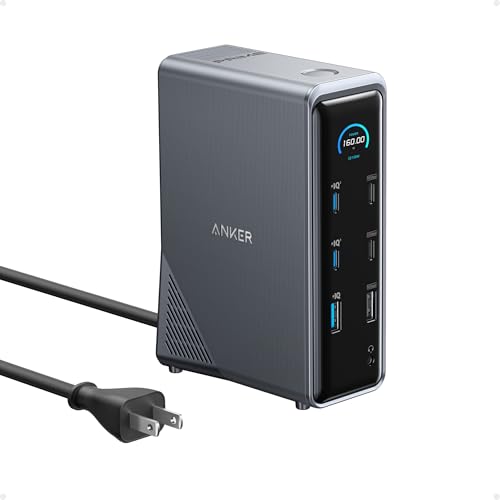
Anker Prime Charging Docking Station 14-in-1
Best OverallA balanced permanent-desk dock with strong charging, dual displays, networking, and plenty of USB connectivity.
The Anker Prime Charging Docking Station is the most balanced option in this group for a student who wants to build a permanent desk setup without immediately moving into Thunderbolt 5 territory.
Its vertical design is useful on smaller desks because it uses less horizontal space than many wide docking stations. It also integrates its power supply rather than depending on another large charging block sitting beside the dock.
The 14-port setup covers the connections most students are likely to need: USB-C, USB-A, two HDMI ports, Ethernet, audio, and charging connections. Data transfer reaches up to 10Gbps, while the dock supports dual 4K displays on compatible systems.
Another useful feature is Anker's built-in smart display. Instead of treating the dock as a completely passive box, it can provide information about charging and connected devices. That is not essential, but it is a helpful addition when several devices are connected at once.
Why it stands out
The main advantage is balance. You are getting substantial laptop and accessory charging, two displays, wired networking, USB expansion, and a relatively desk-friendly vertical body without paying specifically for Thunderbolt 5.
For a dorm desk, apartment workstation, graduate-student office, or permanent study setup, that combination makes more sense than chasing the highest possible specification in every category.
What to watch for
Mac users need to pay attention to display behavior. macOS does not support MST in the same way as Windows, so connecting two monitors does not automatically mean every Mac will provide two independent extended desktops.
This is also more of a fixed desk dock than a travel accessory. If you only need two USB ports and one monitor, a small USB-C hub will be easier to carry and considerably simpler.
Key specs from the research
Manufacturer / retailer specifications; not personally tested. Unavailable fields are omitted.
- Compatibility
- USB-C host; display support depends on the laptop and operating system. macOS does not support MST for independent extended displays.
- 14-in-1 USB-C docking station with data transfer up to 10Gbps
- Two HDMI outputs; up to dual 4K at 60Hz on compatible systems
- Up to 160W total output; up to 100W on supported USB-C charging ports
- Ethernet, audio, USB-C, USB-A, and built-in smart display
Best fit: Choose the Anker Prime 14-in-1 if you want one central device to handle charging, displays, networking, and everyday peripherals on a desk that stays mostly assembled.

WAVLINK
WAVLINK 11-in-1 USB-C Docking Station
Best ValueA more accessible route to multiple displays, Ethernet, USB expansion, and laptop charging.
Not every student needs a premium Thunderbolt dock. The WAVLINK 11-in-1 focuses instead on giving you a large amount of useful connectivity for a more conventional USB-C workstation.
Its display system includes two HDMI outputs and one DisplayPort output. The product listing specifies support for configurations up to a single 8K display or triple 4K, depending on the connected computer and display setup.
The dock also includes USB expansion, Ethernet, an SD card reader, and a 125W PD3.1 power system. That covers most of the things a student is likely to add to a laptop when turning it into a desktop computer.
Why it stands out
Its strongest argument is not one headline specification. It is how many everyday problems it can solve at the same time.
You can connect external displays, wired Internet, storage, input devices, and power through one central dock without moving into the much higher price range associated with Thunderbolt 5 hardware.
That makes it especially appealing for a student who wants a full desk setup but still has to think carefully about budget.
What to watch for
Multi-monitor support is highly dependent on the host laptop. MacBooks in particular have model-specific external-display limits, and macOS does not provide the same MST behavior as Windows.
Do not buy this dock only because the product page says “triple monitor.” First check what your exact laptop model can output through USB-C.
Key specs from the research
Manufacturer / retailer specifications; not personally tested. Unavailable fields are omitted.
- Compatibility
- USB-C host; display support depends on the laptop, operating system, and USB-C display capabilities.
- Two HDMI outputs and one DisplayPort output
- Listing specifies up to one 8K display or triple 4K, depending on the host and display setup
- 125W PD3.1 power system
- USB expansion, Ethernet, and SD card reader
Best fit: Choose this WAVLINK if your priority is getting a lot of useful desk connectivity without paying for advanced Thunderbolt features you may never use.
WAVLINK
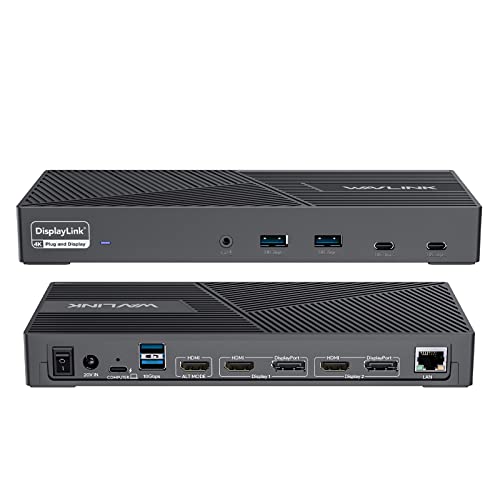
WAVLINK DisplayLink Triple Monitor Dock
Best for Multiple MonitorsBuilt specifically for users who care more about running several external displays than simple plug-and-play operation.
This WAVLINK dock takes a different approach from a normal USB-C docking station.
It uses DisplayLink technology to support multi-monitor configurations, making it particularly interesting for laptops whose native external-display support is limited.
The dock provides three HDMI ports, two DisplayPort connections, six USB ports, Ethernet, audio, and up to 100W laptop charging. Its focus is clear: this is a dock for people who want a large desktop workspace built around several displays.
Why it stands out
DisplayLink can make multi-monitor setups possible in situations where a laptop's native display outputs would otherwise be restrictive.
That can be useful for research, programming, spreadsheets, writing with reference material open on another screen, or any workflow where screen real estate matters more than having the smallest possible dock.
It is also particularly relevant to some MacBook users who want more external displays than their laptop would normally support through a basic USB-C dock.
What to watch for
DisplayLink adds software to the setup.
On macOS, DisplayLink Manager needs to be installed and given the permissions required to send display data through USB. That makes this solution more complicated than a purely native Thunderbolt or DisplayPort connection.
It also means you should not treat DisplayLink and native GPU-driven display output as exactly the same thing. If your priority is maximum simplicity or a completely driver-free setup, another dock may be a better fit.
Key specs from the research
Manufacturer / retailer specifications; not personally tested. Unavailable fields are omitted.
- Compatibility
- Compatible host connection with DisplayLink software; macOS requires DisplayLink Manager and the necessary permissions.
- DisplayLink-based triple-monitor approach
- Three HDMI ports and two DisplayPort connections
- Six USB ports, Ethernet, and audio
- Up to 100W laptop charging
Best fit: Choose this model if running several external monitors is more important to you than maintaining the simplest possible plug-and-play setup.
Anker
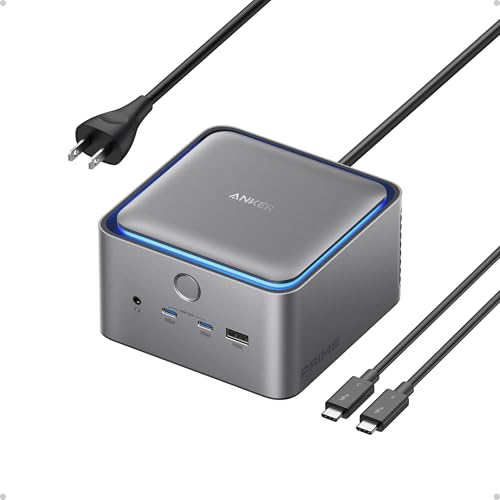
Anker Prime TB5 Docking Station 14-in-1
Best PremiumThunderbolt 5 bandwidth, 140W laptop charging, fast networking, and high-end display support.
The Anker Prime TB5 is where this comparison moves from an everyday student dock into high-performance workstation hardware.
Thunderbolt 5 provides substantially more bandwidth than a basic USB-C dock, and the Anker includes one Thunderbolt 5 upstream port, two downstream Thunderbolt 5 ports, additional USB-C and USB-A connections, 2.5Gb Ethernet, audio, SD and TF card readers, and a selectable HDMI 2.1 or DisplayPort 2.1 connection.
Host charging reaches up to 140W on compatible laptops.
For supported Thunderbolt 5 Windows systems, the dock is designed for very high-resolution display configurations, including a single display up to 8K and high-end dual-display arrangements.
Why it stands out
Bandwidth is the real reason to buy this dock.
If your workflow involves large video files, external SSDs, high-resolution displays, fast wired networking, and a high-power laptop, Thunderbolt 5 gives those devices much more room to operate.
It also means the dock has more headroom for future hardware than a conventional USB-C hub.
What to watch for
A premium dock only makes sense if the laptop can actually use it.
Anker lists Thunderbolt 4 and Thunderbolt 5 laptops as the relevant host systems, and display capability varies significantly between Windows machines and different generations of Apple silicon.
A student using an ordinary USB-C notebook for web browsing, documents, and one monitor will gain very little from paying for this level of hardware.
Key specs from the research
Manufacturer / retailer specifications; not personally tested. Unavailable fields are omitted.
- Compatibility
- Thunderbolt 4 and Thunderbolt 5 hosts; external-display support varies by Windows hardware and Apple silicon generation.
- One Thunderbolt 5 upstream port and two downstream Thunderbolt 5 ports
- Selectable HDMI 2.1 or DisplayPort 2.1 connection
- Up to 140W host charging
- 2.5Gb Ethernet, USB-C, USB-A, audio, SD, and TF card readers
Best fit: Choose the Anker Prime TB5 if you already own a high-end Thunderbolt laptop and regularly move large files, connect fast storage, or use demanding external displays.

WAVLINK
WAVLINK Thunderbolt 5 Dock with NVMe M.2
Best for Storage & Power UsersCombines a Thunderbolt 5 dock with an internal NVMe SSD slot for demanding study, research, and creator workflows.
The most unusual dock in this guide is the WAVLINK Thunderbolt 5 13-in-1.
Alongside its Thunderbolt 5 ports, USB connectivity, 2.5Gb Ethernet, SD 4.0 reader, audio connection, and high-power laptop charging, it includes an internal PCIe Gen 4 x4 M.2 slot.
That means the dock can also become a high-speed local storage device once you install a compatible NVMe SSD.
For students dealing with large research datasets, RAW photographs, video files, virtual machines, large coding projects, or other storage-heavy workloads, that can remove the need for a separate SSD enclosure.
Why it stands out
The built-in M.2 slot fundamentally changes what the dock can do.
Instead of connecting a laptop to a dock and then connecting an external SSD enclosure to the dock, storage can live directly inside the workstation.
The listing specifies an M.2 interface of up to 64Gbps, while the Thunderbolt 5 host connection supports high-bandwidth data and up to 140W laptop charging.
This makes the WAVLINK far more specialized than a normal student dock, but it also gives the right user a genuinely useful capability that the other four products do not provide.
What to watch for
The NVMe SSD itself is not included.
The highest multi-monitor modes also depend heavily on the host system. WAVLINK specifies that its triple-display configuration requires a Windows 11 or later computer with Thunderbolt 5, while macOS is limited to two external displays through this dock.
It is therefore a poor choice for someone who simply wants extra USB ports. Much of its value comes from Thunderbolt 5, fast storage, and advanced display workflows.
Key specs from the research
Manufacturer / retailer specifications; not personally tested. Unavailable fields are omitted.
- Compatibility
- Thunderbolt 5 host; listed triple-display configuration requires Windows 11 or later with Thunderbolt 5, while macOS is limited to two external displays through this dock.
- Internal PCIe Gen 4 x4 M.2 NVMe slot; SSD not included
- M.2 interface listed up to 64Gbps
- Up to 140W host charging
- 2.5Gb Ethernet, SD 4.0 reader, USB connectivity, and audio
Best fit: Choose this dock if your laptop is already part of a high-performance workspace and you want docking, networking, charging, and NVMe storage in one device.
How to Choose a Laptop Docking Station
Start with your laptop, not the dock
A docking station cannot create capabilities that the host computer does not support.
Before buying, identify whether your laptop has a standard USB-C data port, USB-C with DisplayPort Alt Mode, Thunderbolt 4, or Thunderbolt 5. Two ports that look identical from the outside can support very different features.
This matters most for displays, charging, and high-speed storage.
Decide how many external monitors you actually need
One external display is relatively easy to support.
Two or three external displays introduce more variables, especially on MacBooks. MST, DisplayLink, Thunderbolt, the laptop's GPU, and the exact processor generation can all affect what is possible.
If several independent displays are the priority, check the manufacturer's compatibility information for your exact laptop before purchasing.
Do not overpay for bandwidth you will never use
Thunderbolt 5 is impressive, but a student using a keyboard, mouse, Ethernet connection, and a single 4K monitor does not automatically benefit from the most expensive dock.
USB-C docks remain a sensible option for ordinary study setups.
Thunderbolt 5 becomes more useful when fast SSDs, very large file transfers, high-resolution displays, and high-powered laptops are part of the workflow.
Check charging requirements
A dock may support 100W or 140W charging, but the laptop decides how much power it will actually accept.
High-performance laptops may also require more power than a dock can provide under heavy load. Always compare the dock's host charging output with the power adapter supplied with your laptop.
USB-C vs Thunderbolt vs DisplayLink
These terms describe different parts of the docking experience.
USB-C describes the connector, but not necessarily the speed or display capability behind it. A USB-C port may support charging and data while lacking video output.
Thunderbolt 4 and Thunderbolt 5 provide more standardized high-speed connectivity and are especially valuable for fast external storage and advanced display setups.
DisplayLink takes another route by transmitting display data over USB with the help of software. It can enable additional monitors on computers with restrictive native display support, but requires drivers and adds another software layer.
None is automatically the right choice for everyone. The best technology depends on what your laptop supports and what you need the desk to do.
FAQ
Is a docking station worth it for a student?
It can be if a laptop regularly stays on the same desk.
A dock becomes particularly useful once you have a monitor, keyboard, mouse, charger, storage device, Ethernet cable, or other accessories that would otherwise need to be connected individually every time you sit down.
For a student who carries a laptop everywhere and rarely uses external peripherals, a smaller USB-C hub may make more sense.
Can a docking station charge my laptop?
Many powered docks can, but charging power varies.
Your laptop and dock must support compatible USB Power Delivery levels, and the computer will only draw the amount of power it is designed to accept.
Gaming laptops and mobile workstations may still require their original high-wattage charger for maximum performance.
Can I use three monitors with a MacBook?
Sometimes, but not simply because a dock has three video outputs.
Apple's external-display limits vary by processor and model. Some docks use DisplayLink to add additional displays through software, while native USB-C or Thunderbolt docks remain subject to the Mac's supported display configuration.
Check your exact MacBook model before purchasing a multi-monitor dock.
Do I need Thunderbolt 5?
Most students do not.
Thunderbolt 5 becomes more attractive if you already own compatible high-end hardware and need fast external storage, very large data transfers, high-resolution multi-display setups, or high-power docking.
For standard schoolwork and a conventional desk setup, USB-C or Thunderbolt 4 can still be more than enough.
Is DisplayLink bad?
No, but it solves a specific problem.
DisplayLink is useful when you need additional monitors beyond what the laptop can easily drive through native display outputs. The trade-off is that it requires software and is not identical to a direct GPU-driven Thunderbolt or DisplayPort connection.
For productivity work, that trade-off can be worthwhile. For the simplest possible setup, native display output is easier.
Final Thoughts
For most students building a permanent desk, the Anker Prime Charging Docking Station 14-in-1 offers the most balanced combination of connectivity, charging, displays, and desk-friendly design.
The WAVLINK 11-in-1 makes more sense when value matters more than premium bandwidth, while the WAVLINK DisplayLink dock is the specialist option for multi-monitor users.
The two Thunderbolt 5 models serve a different class of setup. The Anker Prime TB5 focuses on premium bandwidth and connectivity, while the WAVLINK Thunderbolt 5 + NVMe is particularly interesting when fast local storage is part of the workflow.
The most important rule is simple: choose the dock around the laptop you already own, not around the largest number printed on the product page.